Add StatementPro.ai to Claude once as a custom connector, then ask Claude to convert a statement. Claude shows you the pages and credit cost first, and once you say yes, it gives you the transactions as CSV or JSON.
Before you start
- A StatementPro.ai account with any credit pack. The 5 free credits that come with a new account work in the web app only.
- A Claude plan with custom connectors. According to Claude's help, custom connectors are on the Free, Pro, Max, Ultra, Team and Enterprise plans. The Free plan can add one custom connector.
Steps
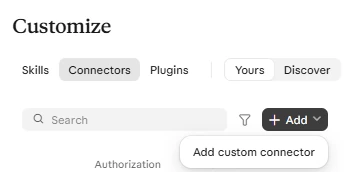
- In Claude, open Customize › Connectors, click + Add, then choose Add custom connector.
- Name it StatementPro.ai and enter this URL:
https://statementpro.ai/v1/mcp. Click Continue.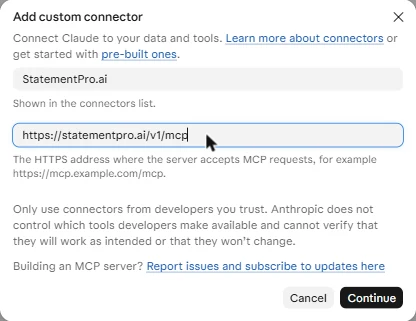
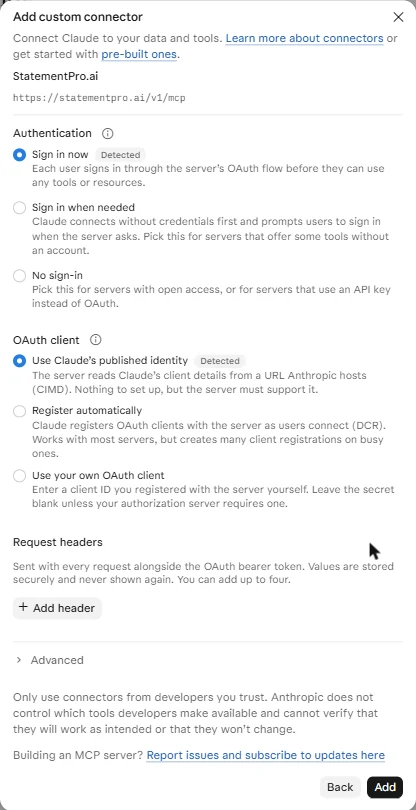
- Review the settings Claude detects. Leave Authentication on Sign in now and OAuth client on Use Claude's published identity, leave the request headers empty and don't add an API key. Click Add.
- Click Connect. A StatementPro.ai page opens; sign in with the code we email you if asked.

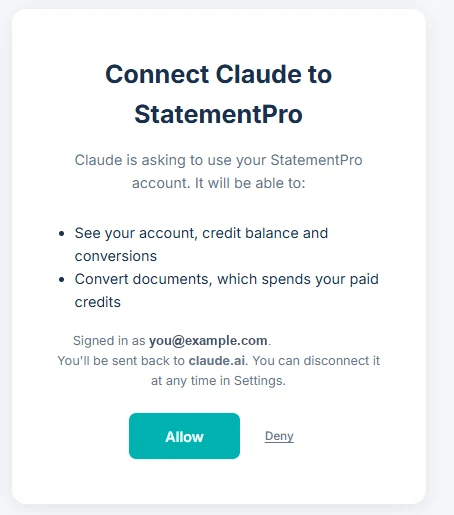
- The approval screen lists what Claude can do: see your account, credit balance and conversions, and convert documents, which spends your paid credits. Click Allow.
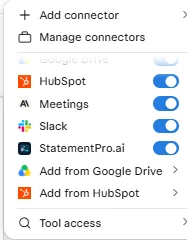
- Back in Claude, start a chat and check that StatementPro.ai is switched on under + › Connectors.
Team and Enterprise plans
If your organization lets members add custom connectors, follow the steps above. The connector is then listed for everyone in your organization, and each person connects with their own StatementPro.ai account. If you don't see Add custom connector, an Owner or Primary Owner adds it first in Organization settings › Connectors (Add › Custom › Web), with the same name and URL. Members then find it under Customize › Connectors, click Connect and follow steps 4 to 6.
Claude's menu names come from Claude's help article Get started with custom connectors using remote MCP. Checked on November 19, 2026. If your menus look different, follow Claude's guide to custom connectors.
Convert a statement
Ask Claude something like: "Convert this bank statement with StatementPro.ai. Tell me what it will cost first."
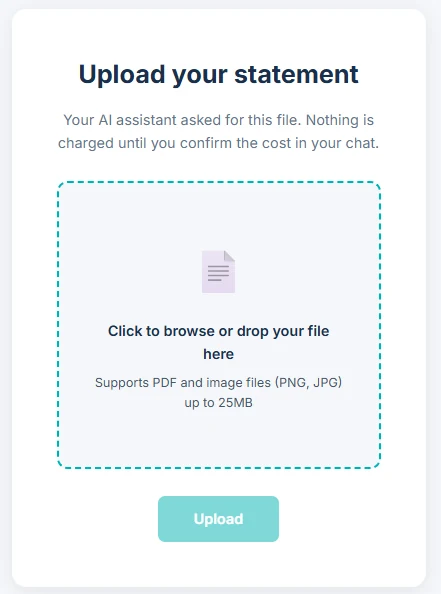
Claude can't hand a file you attach in the chat to a connector, so it gives you an upload link instead. Open it while you're signed in to StatementPro.ai, upload the statement, wait for Statement uploaded, then go back to Claude and say it's uploaded. Each link works once, within one hour, for one PDF, PNG or JPEG file up to 25 MB.
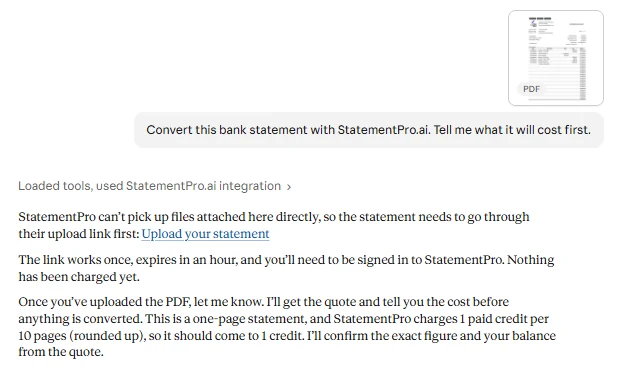
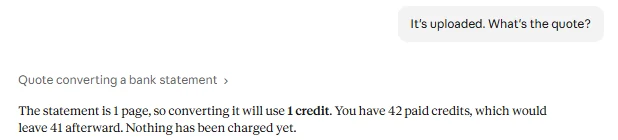
Claude replies with the page count, the credits it will cost and your balance. Nothing is charged yet.
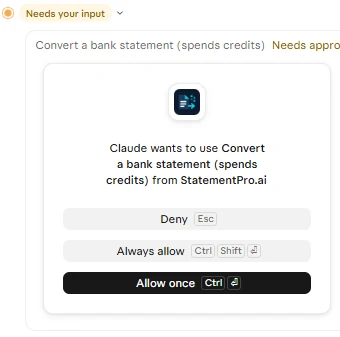
Say yes. Before it converts, Claude asks your permission to use the StatementPro.ai tool. Click Allow once, or Always allow if you don't want to be asked each time. Claude may ask the same way before it checks the job and fetches the result.
Most statements take a few minutes; if it's still running, ask Claude to check again.
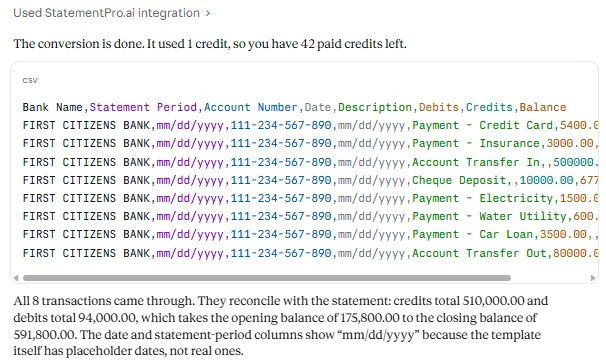
- Results come back as CSV or JSON. Excel, QuickBooks and Xero files are downloads in the StatementPro.ai web app.
- Claude sees conversions made through an assistant or the API, not statements you uploaded on the website.
Cost
Each conversion uses 1 purchased credit per 10 pages, rounded up: a 4-page statement costs 1 credit and a 23-page statement costs 3. If a conversion fails, its credits go back to your balance.
Privacy
You approve the connection on statementpro.ai, and Claude never sees your StatementPro.ai sign-in. Transactions Claude fetches appear in your conversation, where Anthropic's terms for your Claude plan apply. Our Privacy Policy explains how we handle statements. To remove access, see Disconnect an AI assistant.
If something goes wrong
- The approval page says connecting needs a credit pack: your account hasn't bought one yet. Buy any pack, then connect again.
- The page says "This link has expired": go back to Claude and start connecting StatementPro.ai again.
- The connection fails when you click Add or Connect: check that the OAuth client is set to Use Claude's published identity.
- Claude says a connector with this URL already exists: someone in your organization has already added it. Open it under Customize › Connectors and click Connect.
- Claude says StatementPro.ai hasn't received the file: check that the upload page showed Statement uploaded. If it didn't, open the link again and re-upload, or ask Claude for a new link.
More fixes are in AI assistant troubleshooting.
Connect Claude with any credit pack
Any pack unlocks AI-assistant connections, the API and every download format.
See credit packs